


Student Services
Comprehensive Student Support for Your Success
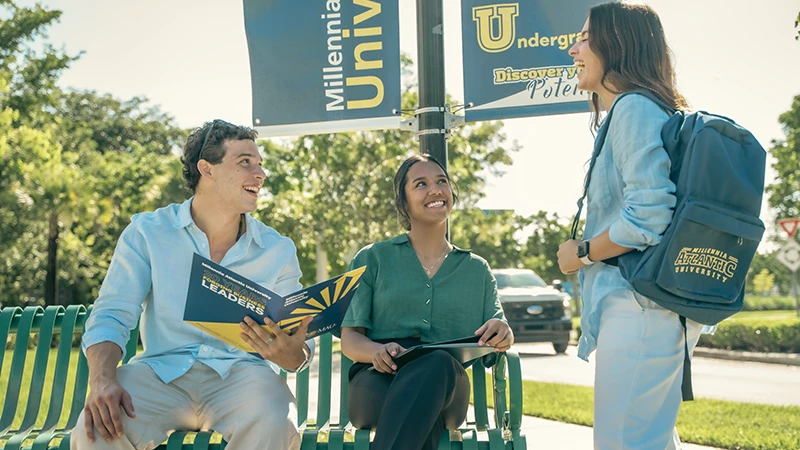
Millennia Atlantic University offers personalized student services designed to support academic success and personal growth. From academic advising and career support to wellness resources and student activities, MAU is committed to helping every student thrive both in and out of the classroom.

Virtual Nest
MAU utilizes Google Classroom to enhance learning, providing a digital platform for course materials, assignments, and communication between students and faculty.

Library
MAU’s library offers a vast collection of resources, both physical and digital, to support student research, academic growth, and professional development.

Housing
MAU offers assistance with finding safe and comfortable housing options for students, ensuring a smooth transition to university life.

Gym Facilities
MAU students enjoy exclusive access to fitness amenities at UFC FIT Doral, offering amenities and programs to support students’ physical wellness.

Student Activities
MAU provides a vibrant range of student activities and events, fostering community engagement and personal growth throughout the academic year.
Transportation
MAU supports accessible and affordable transportation options for our students, including discounted transit passes and free local services.

Advising and Tutoring
MAU provides personalized tutoring and academic advising to support students in their academic journey and ensure their success.

Careers
MAU offers dedicated career services to help students with job placement, internships, and professional development opportunities.
For more information, please contact the Student Services Department at



Millennia Atlantic University
Explore MAU
About MAU
Academics
Athletics
News & Alerts
MACAWS Blog
Students Services
Contact Us
Admissions
Local Admissions
International Students
Online Admissions
Scholarships
Financial Aid
Career Paths
Business Administration
International Management
Human Resources
Entrepreneurship
Resources
Academic Calendar
Portals
Accreditation
Make a Payment
Catalog
Student Consumer Info
Staff Email
Privacy Policy